
E-mail address
designs@hexspurdesigns.com
Developed by HEXSPUR DESIGNS
HEXSPUR
Nesting Pro

True-shape nesting inside your CAD — more parts per sheet, scrap kept together as reusable remnant,
and stock tracked as you nest. Built in Ahmedabad and field-tested with fabrication shops.

Overview
Nesting Built for
Gram-to-Gram Savings
Gram-to-Gram Savings
In fabrication, every gram of scrap is the shop’s own cost. HEXSPUR Nesting Pro arranges your part profiles on stock sheets automatically — by their true shape, not just their bounding box — so more parts fit on every sheet.
It runs as a ribbon tab inside nanoCAD, so your team selects parts, sets copies and gets the cutting layout in the same DWG they already work in. No separate nesting software, no file export and import.
nanoCAD 26 Platform + HEXSPUR Nesting Pro, perpetual licences: ₹66,000 + 18% GST. Already using nanoCAD 26? The Nesting Pro add-in alone is ₹21,000 + GST.
Three Engines
One Click,
Three Ways to Nest
Three Ways to Nest
Choose the engine that suits the job. Run more than one and keep the layout you like best.
| Engine | How it nests | Best for |
|---|---|---|
| Standard Nest | Fast rectangular nesting on each part’s outline box. | Rectangular parts and quick estimates |
| Pro Nest | True-shape nesting, placing the largest parts first across the whole job. | Mixed and irregular parts, most jobs |
| Legend Nest | True-shape nesting that fills one sheet at a time before moving to the next. | Highest utilisation per sheet |
Key Features
Made With Fabricators,
for Fabricators
for Fabricators
True-Shape Nesting
Parts are placed by their real outline, so curved, angled and irregular parts interlock instead of sitting in rectangles.
Common-Cut Part Gap
Set the part-to-part gap to your laser beam width and neighbouring parts share one cut line — less metal lost and less cutting time.
Nest Inside Part Holes
Small parts can be placed inside the cut-outs and holes of larger parts, using metal that would otherwise be scrap.
Clean, Aligned Rows
Lock cluster orientation keeps same-size parts in straight rows with matching orientation — fewer pierces and traverses on the machine.
Reusable Remnants
Set a minimum usable remnant size. Unavoidable scrap is kept together as one usable piece instead of being scattered across the sheet.
Sheet Stock Management
Keep a list of the sheets you have by size, thickness, material and quantity, and nest straight from your stock.
Stock Management
Nest From the Sheets
You Actually Have
You Actually Have
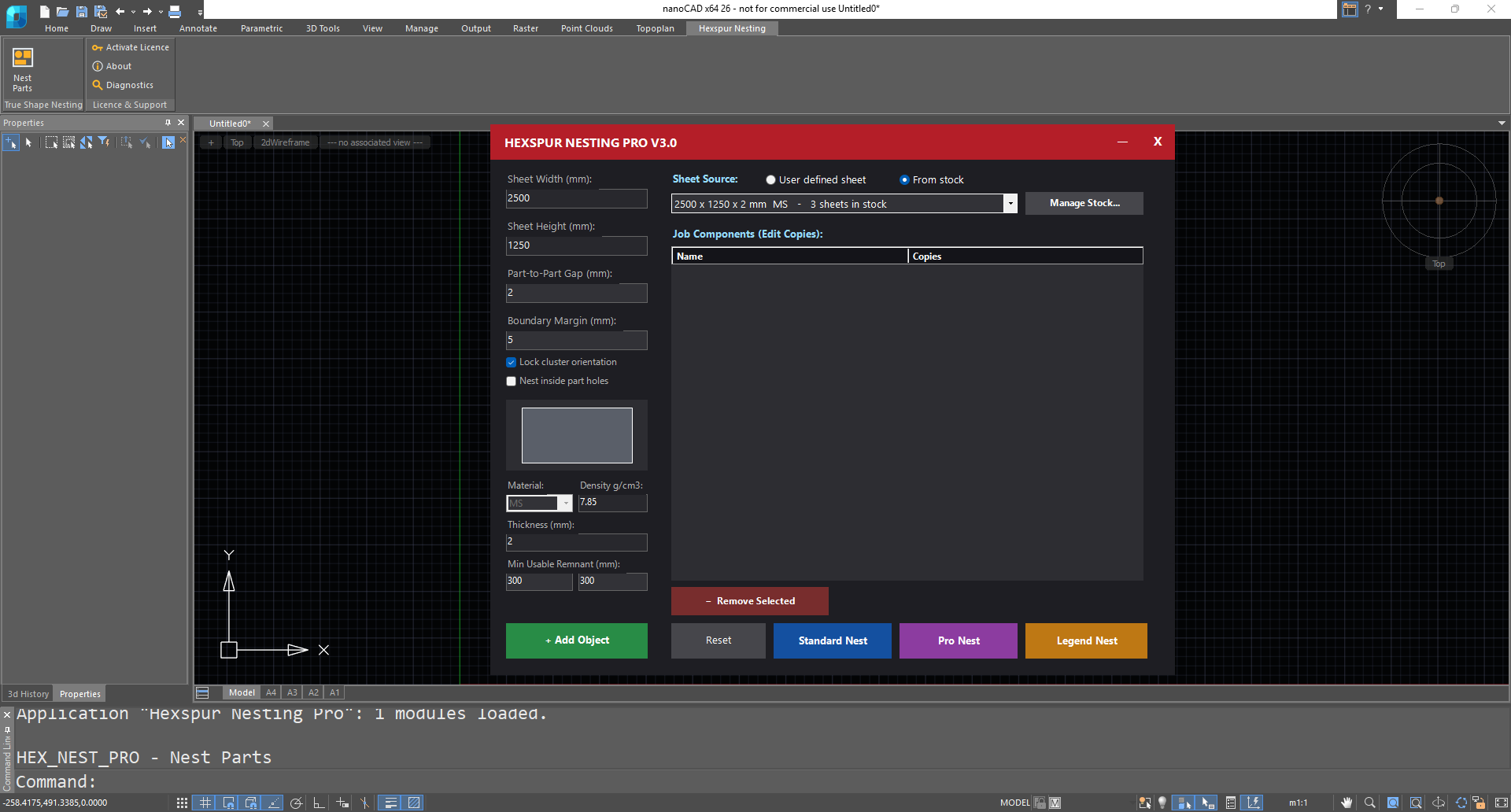
Choose User defined sheet for a one-off size, or From stock to nest from your saved stock list. The tool matches sheets by size, thickness and material.
- Stock list of width, height, thickness, material and quantity, remembered between sessions
- If stock runs out, choose to continue with the selected sheet, use another stock sheet of the same thickness and material, or stop
- Stopping still keeps the layout completed so far
- Undo a nest and the sheets go back into stock
Real Results
Layouts Your Operator
Would Draw by Hand
Would Draw by Hand
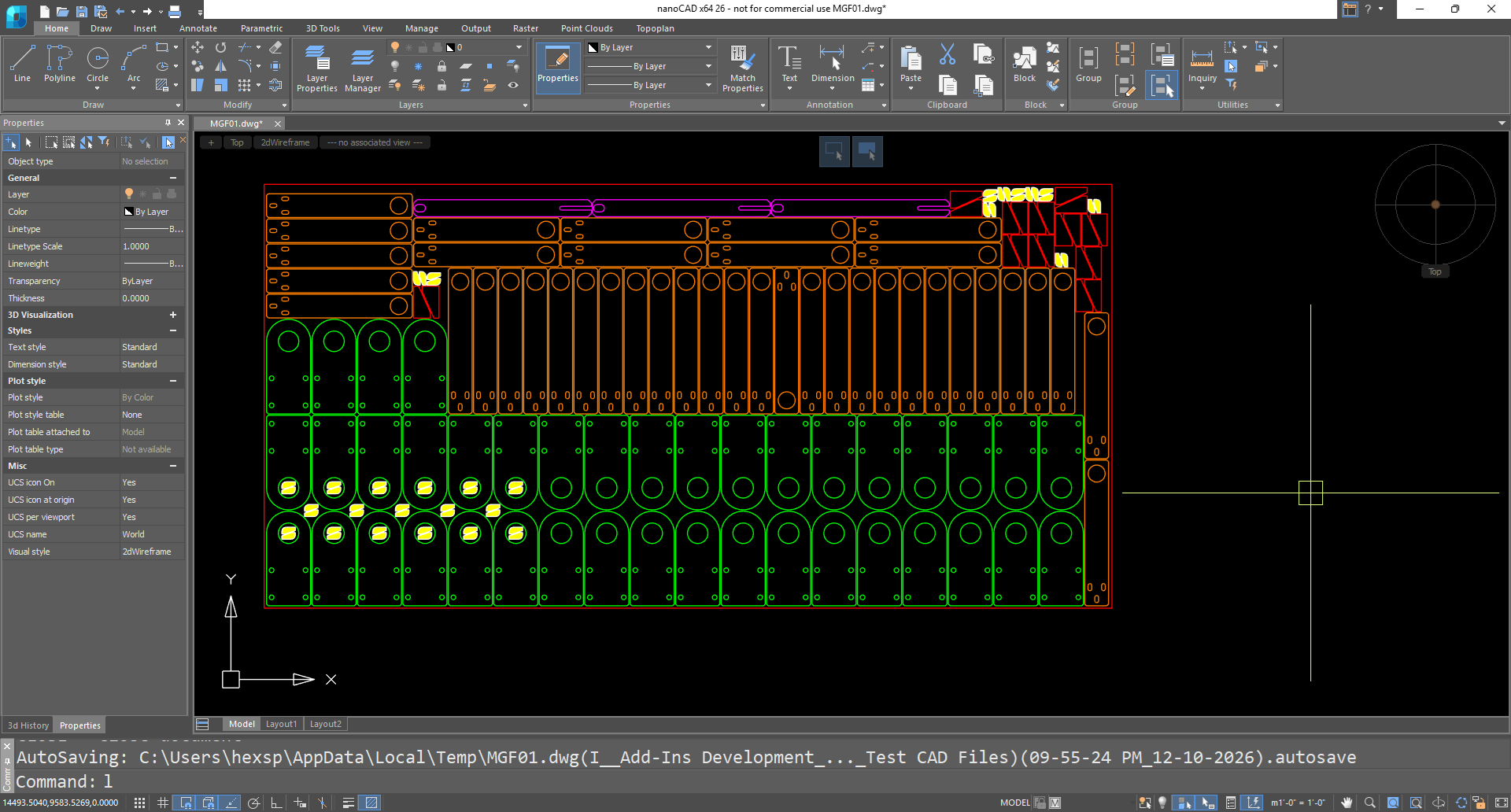
Experienced nesters judge a layout by more than its percentage. HEXSPUR Nesting Pro is tuned against real shop jobs and manual nests — same-size parts in full rows, scrap in one place, and a layout that is quick to cut.
- Tested on real jobs from fabrication shops, from 50 to 700+ parts
- Part gap, boundary margin, material, density and thickness set per job
- Copies set per part in the job list, with add and remove in one place
- Output stays in your DWG, ready for cutting and costing
How It Works
From Part Drawings
to Cutting Layout
to Cutting Layout
- Open the Hexspur Nesting tab in the ribbon and click Nest Parts
- Click + Add Object, select the part outlines in your drawing and set the copies for each
- Choose the sheet: type a size, or pick one from your stock list
- Set part gap, boundary margin, material and thickness
- Click Standard Nest, Pro Nest or Legend Nest and review the sheets
Licensing & Support
Simple to Start,
Easy to Run
Easy to Run
30-Day Free Trial
Install and try HEXSPUR Nesting Pro on your own jobs before you buy.
Per-Seat Licence
Activate with a licence key from the Hexspur Nesting ribbon tab.
Network Licence
Register on several PCs and use the seats one at a time — ideal for shared workstations.
Ribbon Integration
Nest Parts, Activate Licence, About and Diagnostics in one Hexspur Nesting tab.
Direct Developer Support
Support and updates straight from the engineers who build the tool.
Bundled With nanoCAD
Buy nanoCAD and HEXSPUR Nesting Pro together from one local partner.
Early Customer Offer
5 Years of Updates
Included
Included
369
early customer licences
The first 369 customers get five years of updates included with their licence — every new version, improvement and feature we release in that time, at no extra cost.
Claim Your LicenceComing Next
In Development
- AI-assisted nesting — runs fully offline, chooses a strategy for each job and learns from the changes your team makes. Switch it on or off any time.
- Cutting path & NC code — generate the cutting sequence and machine code directly from the nested layout.
FAQs
Frequently Asked
Questions
Questions
HEXSPUR Nesting Pro runs inside nanoCAD, with all three engines — Standard, Pro and Legend. Existing CMS IntelliCAD customers can ask us about the version for their platform.
Standard Nest nests quickly on each part’s outline box. Pro Nest is true-shape nesting with the largest parts placed first across the whole job. Legend Nest is true-shape nesting that fills one sheet at a time for the highest per-sheet utilisation.
Most shops set the part-to-part gap to the laser beam width. Neighbouring parts then share one cut line, which saves metal and cutting time.
Yes. Tick Nest inside part holes in the nesting dialog.
Yes, a 30-day trial. Send us a sample drawing and we can also show it on your own parts and sheet sizes.
No. HEXSPUR Nesting Pro is an add-in that runs inside your CAD, and the layout stays in your DWG.
Contact
Want to cut
material waste?
material waste?
Share your requirement and our engineers will reply with a clear scope, timeline and quote.